Google Play Console is Google's dashboard for publishing and managing Android apps. Developers use it to upload releases through testing tracks, manage the store listing, run store listing experiments, create custom store listings, read statistics and acquisition reports, reply to reviews, monitor Android vitals for crashes and ANRs, and handle policy declarations. Marketers mainly work in the Grow section: store presence, experiments and reports.
Google Play Console sections at a glance
| Section | What it does | Who uses it most |
|---|---|---|
| Dashboard | Overview of installs, ratings, vitals and to-dos | Everyone |
| Test and release | Internal, closed and open testing tracks and production releases | Developers |
| Monitor and improve | Android vitals, reviews, ratings, policy status | Developers and support |
| Grow users | Store listing, custom store listings, experiments, promotional content | Marketers and ASO |
| Monetize | In-app products, subscriptions, pricing | Product and finance |
| Policy and programs | App content declarations, data safety, target audience | Developers and legal |
Verdict: Marketers should live in Grow users and reviews; developers in releases and vitals; everyone should check policy status.
Setting up your account and app
Create a Google Play developer account, verify your identity and payment details, then create the app with its default language, name and whether it is a game or app. New personal developer accounts must complete identity verification, and organisation accounts need extra business details. Our Google Play developer account guide covers this step in detail.
Before the first release, Play Console walks you through a setup checklist covering privacy policy, app access, ads, content rating, target audience, data safety and government app declarations. Completing it accurately avoids review delays later.
Testing tracks
Play Console offers internal testing for small teams, closed testing for invited testers and open testing for anyone who opts in. Releases move from testing tracks to production when you are ready. Many new personal accounts must run a closed test with enough testers for a minimum period before they can publish to production.
See the Google Play closed testing requirement for the current rules and how to recruit testers without breaking policy.
Releases and staged rollouts
Production releases can roll out to a percentage of users first. Staged rollouts let you watch crash rates and reviews before releasing to everyone, and you can halt a rollout if problems appear.
Use them for every significant release; see version rollout and ratings protection.
Main store listing
The store listing holds your app name (title), short description, full description, icon, feature graphic, screenshots and video. The title and descriptions are indexed for search, so they are your main ASO fields on Google Play.
See Google Play keyword optimization, short description writing and long description writing.
Custom store listings
Custom store listings let you show different listings to users in specific countries, to pre-registered users, or to users arriving from Google Ads campaigns or a unique URL. They are useful for localised messaging and campaign-specific creative.
See our custom store listings guide.
Store listing experiments
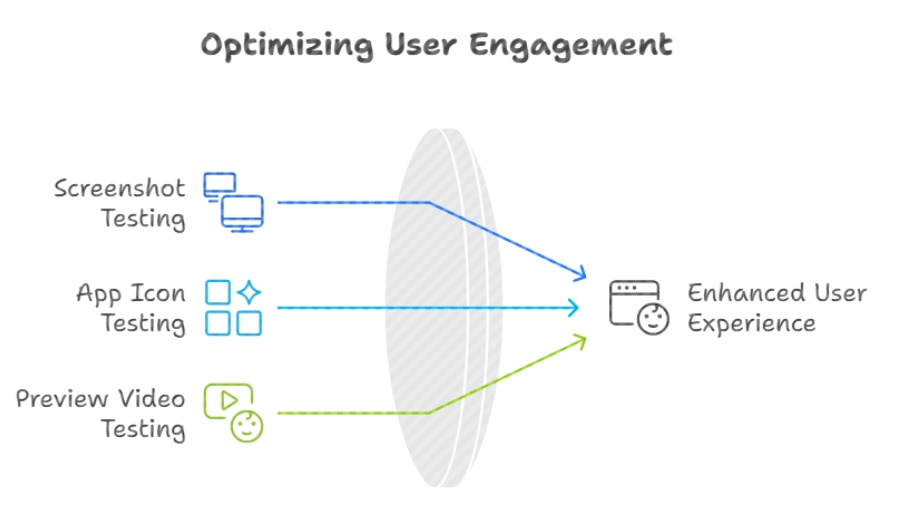
Experiments let you A/B test icons, feature graphics, screenshots, videos and descriptions against your current listing, with real Play traffic. Results show install differences with confidence ranges.
See store listing experiments and statistical significance.
Promotional content
Promotional content lets you showcase time-limited events, offers and major updates on Google Play surfaces. It needs to be submitted ahead of the event dates for review.
See Google Play promotional content.
Statistics and store performance
Statistics reports cover installs, uninstalls, ratings and revenue over time. Store performance reports show store listing visitors, acquisitions, conversion and the search terms that brought users to your listing, which is rare first-party keyword data.
See Play Console store performance.
Ratings and reviews
Play Console lets you read and reply to reviews, filter by rating, language, device and app version, and see rating trends. Replies are public and can lead users to update their reviews.
See review reply templates and the In-App Review API.
Android vitals
Android vitals tracks crash rate, ANR rate, battery and rendering issues. Google uses some of these as quality signals, and apps with poor vitals can receive reduced visibility or warnings on their listing.
See Android vitals thresholds.
Policy status and declarations
Policy status shows warnings, rejections and required declarations. Keep data safety, permissions, target audience and financial features declarations up to date, since missing declarations can block updates.
See Google Play account suspension recovery for what to do if things go wrong.
Users and permissions
Invite team members with roles limited to what they need: marketers to the store listing and reports, developers to releases, finance to monetisation. This protects the account and keeps work organised.
Review access regularly, especially when people leave the team.
A weekly Play Console routine
Each week, check the dashboard for policy issues, review vitals after releases, read and reply to new reviews, look at store performance and search terms, and check running experiments.
This routine catches problems early and feeds a steady stream of ASO improvements. Track the results with our ASO KPIs.
Worked example: a first month in Play Console
Week one: complete the setup checklist, upload an internal test build and invite the team with limited roles. Week two: move to closed testing, collect feedback and fix the top crashes shown in Android vitals before anyone outside the team sees the app.
Week three: finalise the store listing with researched keywords and screenshots, then release to production with a staged rollout. Week four: read store performance search terms, reply to every review and start the first store listing experiment on the icon or first screenshot.
Common Play Console mistakes
The most common mistakes are rushing declarations, skipping staged rollouts, ignoring vitals until ratings fall, and never opening the store performance report. Each one is cheap to avoid and expensive to fix after the damage is done, especially policy problems that block future updates.
Another frequent mistake is ending experiments too early. Let tests run until they reach enough installs for a confident result, and avoid changing other listing elements during a test, or you will not know which change caused the difference.
How Play Console data feeds ASO
Search terms in store performance show which keywords already bring visitors and how well they convert. Terms with high visitors but low conversion suggest a listing mismatch; terms with conversion but few visitors suggest ranking opportunities worth adding to the title or descriptions.
Combine these reports with keyword ranking tracking and competitor ASO analysis to build a keyword plan grounded in first-party evidence rather than guesses.
Key takeaways
Play Console is both a publishing tool and the richest free source of Google Play ASO data. Developers should own testing, releases and vitals; marketers should own the listing, experiments, custom listings and review replies; everyone should watch policy status.
A short weekly routine across these areas protects ratings, keeps the account in good standing and produces a steady flow of tested listing improvements that compound into more installs over time.
How to do it, step by step
- Complete the setup checklistPrivacy, content rating, data safety and declarations.
- Release through testing tracksInternal, closed, then production with staged rollout.
- Optimize the store listingTitle, descriptions and graphics.
- Run experiments and custom listingsTest creatives and target audiences.
- Monitor weeklyVitals, reviews, store performance and policy.
Before and after examples
Illustrative examples written for a generic app in this category, not client results. Swap in your own product, audience, and data.
Full rollout on day one.
Staged rollout starting with a small percentage.
Why it works: Limits damage from bugs.
Guessed search terms.
Used Play Console search term reports.
Why it works: First-party data reveals real searches.
Everyone has admin rights.
Roles limited by job.
Why it works: Protects the account.
Action plan
- Complete declarations
- Use testing tracks
- Stage rollouts
- Optimize listing fields
- Experiment regularly
- Monitor vitals and reviews
Metrics to monitor
- Store listing conversion
- Installs by source
- Crash and ANR rate
- Average rating
- Experiment results
Record the baseline, release date, audience, markets, and external changes before interpreting movement. Rankings and conversion are useful signals, but a decision is stronger when activation, retention, and business value confirm that the page attracted the right users.
Frequently asked questions
What is Google Play Console used for?
Publishing Android apps, managing store listings, testing, reviews, statistics, vitals and policy.
Is Google Play Console free?
Creating a developer account requires a one-time registration fee; the console itself has no subscription.
Where do I edit my Google Play listing?
In the Grow users section under store presence and the main store listing.
Can I A/B test my Google Play listing?
Yes, with store listing experiments in Play Console.
Where can I see search terms for my app?
In store performance reports, which show search terms that led to your listing.
What are Android vitals?
Play Console metrics for crashes, ANRs and other technical quality issues.
Keep reading
More in Platform Guides
Browse all 16 Platform Guides guides