Google Play screenshots must be JPEG or 24-bit PNG with no transparency. Each side must be between 320 and 3,840 pixels, and the longer side can be no more than twice the shorter. Upload two to eight per device type. For phone apps, at least four screenshots of at least 1080 pixels (for example 1080 x 1920) are recommended for promotion eligibility. The icon is 512 x 512 (32-bit PNG, up to 1 MB) and the feature graphic is 1024 x 500.
Screenshot rules for phones
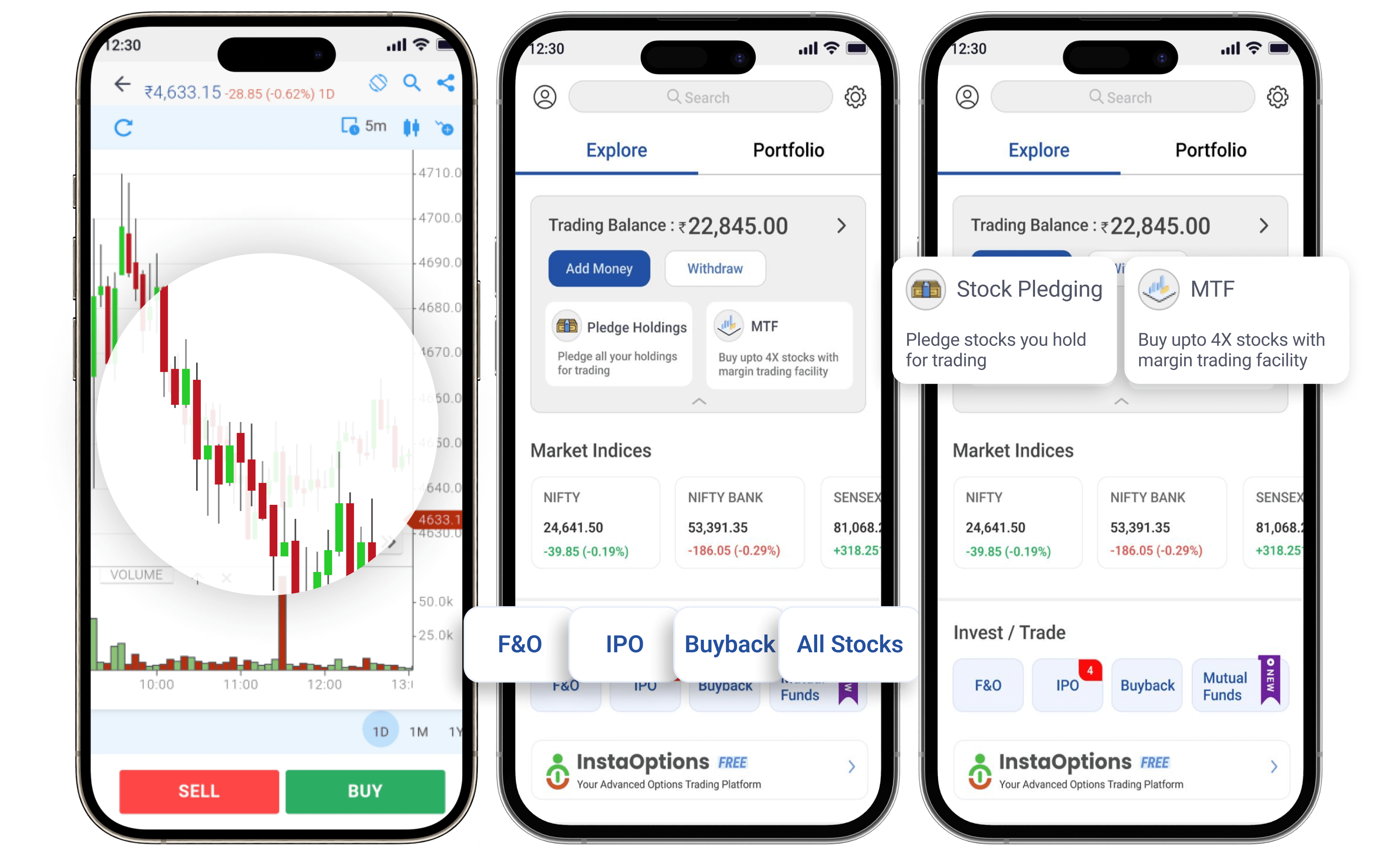
Google Play accepts JPEG or 24-bit PNG screenshots without an alpha channel. The minimum dimension is 320 pixels and the maximum is 3,840 pixels, and the longer side cannot be more than twice the shorter side. You can upload between two and eight screenshots per device type, and they appear in the order you set.
For apps that want to appear in recommendations and other promotional surfaces, Google recommends at least four screenshots with a minimum resolution of 1080 pixels on the shorter side, such as 1080 x 1920 in portrait or 1920 x 1080 in landscape. Designing at 1080 x 1920 or 1440 x 2560 gives sharp results on modern devices while staying within the limits.
Tablets, Chromebooks, Wear OS, TV, and cars
Google Play supports separate screenshot sets for 7-inch and 10-inch tablets, Chromebooks, Wear OS, Android TV, Android Automotive, and Android XR. Large-screen sets matter because Google promotes apps with good large-screen experiences on tablets and Chromebooks, and users on those devices see the matching set first. Our guide to tablet and foldable store assets covers design choices.
Wear OS screenshots should be square and show the watch interface without device frames or extra text, and Android TV needs a 1280 x 720 banner as well as 16:9 screenshots. If you ship on these form factors, treat their listings as separate storefronts with their own conversion goals, as described in our smart TV app store optimization guide.
App icon specifications
The Google Play store icon must be a 512 x 512 pixel 32-bit PNG with a maximum file size of 1,024 KB. Provide a full square image: Google Play applies rounded corners and a shadow dynamically, so adding your own creates a doubled, unprofessional look. Keep important details away from the edges so the mask does not clip them.
The store icon is separate from your launcher icon, which uses Android's adaptive icon format inside the app. Keep both visually consistent so users recognize the app after installing it. Our app icon sizes guide covers both, and our icon A/B testing guide shows how to test changes safely.
Feature graphic and promo video
The feature graphic is a 1024 x 500 pixel JPEG or 24-bit PNG without transparency, and it is required to publish. It appears in some promotional placements and at the top of the listing when you add a video, where it acts as the video thumbnail with a play button. Avoid placing key text near the center or the edges, where overlays can cover it.
The promo video is a YouTube URL, not an uploaded file. It must be public or unlisted, embeddable, free of ads, and not age-restricted. A strong video with a clear thumbnail can lift conversion for apps whose value is easier to show than describe. See our feature graphic guide and app preview video guide for creative direction.
Policy limits on what assets can say
Google Play's metadata policy restricts certain claims in store assets. Graphics and titles should not include performance or ranking claims such as top or number one, price or promotional information such as free or sale, or calls to action such as download now. Screenshots must reflect the real app experience, and misleading graphics can lead to rejection or removal.
These rules push creative toward clear benefit statements and real product screens, which tend to convert better anyway. Our guide to screenshot caption copywriting shows how to write persuasive captions that stay within policy, and the white hat ASO guide covers the wider rules.
Use custom listings and experiments
Google Play lets you create custom store listings for specific countries, pre-registration audiences, and ad campaigns, each with its own screenshots and text. This is how you show region-specific features or campaign-matched messages without changing the main listing. Our guide to Google Play custom store listings explains setup and targeting.
Store listing experiments let you test graphics and text against the current listing with a share of traffic. Start with the first two or three screenshots, which are the most visible in search and on the listing. The store listing experiments playbook covers test design and how to read results.
How to do it, step by step
- Pick a master canvasDesign phone screenshots at 1080 x 1920 or 1440 x 2560 in portrait so they meet the 1080-pixel recommendation and the 2:1 ratio limit.
- Prepare at least four phone screenshotsOrder them by importance and make the first two understandable without captions, since they are the most visible.
- Export the icon and feature graphicCreate a full-square 512 x 512 PNG icon under 1 MB and a 1024 x 500 feature graphic with no transparency.
- Add large-screen and form factor setsIf the app supports tablets, Chromebooks, Wear OS, or TV, upload dedicated screenshots for each.
- Check copy against the metadata policyRemove ranking claims, pricing words, and calls to action from graphics, then test the strongest variant with store listing experiments.
Before and after examples
Illustrative examples written for a generic app in this category, not client results. Swap in your own product, audience, and data.
Rounded-corner icon with a drop shadow baked in.
Full-square 512 x 512 artwork with no shadow; Google applies the mask.
Why it works: Baked-in corners and shadows double up with Play's own treatment.
#1 Free Photo Editor - Download Now!
Remove backgrounds in one tap
Why it works: Ranking claims, pricing terms, and calls to action conflict with Google Play's metadata policy.
Dense text and a logo across the full width.
A bold product visual with a short line of text away from the center play button.
Why it works: When a video is attached, the play button overlays the center of the graphic.
Action plan
- Design phone screenshots at 1080 x 1920 or larger
- Upload at least four phone screenshots
- Export a full-square 512 x 512 icon
- Keep the feature graphic's center clear for the play button
- Add tablet and Chromebook sets for large-screen reach
- Remove claims that breach the metadata policy
Metrics to monitor
- Store listing visitor to installer conversion
- Conversion by device type
- Experiment lift by asset type
- Share of traffic from promotional surfaces
Record the baseline, release date, audience, markets, and external changes before interpreting movement. Rankings and conversion are useful signals, but a decision is stronger when activation, retention, and business value confirm that the page attracted the right users.
Frequently asked questions
What is the best screenshot size for Google Play?
1080 x 1920 pixels in portrait, or 1920 x 1080 in landscape, is a safe standard. It meets the 1080-pixel recommendation for promotion and stays within the 2:1 ratio limit.
How many screenshots can I upload to Google Play?
Between two and eight per device type. At least four high-resolution phone screenshots are recommended.
What size is the Google Play feature graphic?
1024 x 500 pixels, JPEG or 24-bit PNG, with no transparency. It is required to publish.
Can I upload a video file to Google Play?
No. Google Play uses a YouTube URL. The video must be public or unlisted, embeddable, ad-free, and not age-restricted.
Keep reading
Go deeper on this topic
More in Platform Guides
Browse all 9 Platform Guides guides
Work with ASOWin
Primary sources
Platform capabilities and limits can change. Verify current requirements in these official resources: